
You’d be surprised how often accidental deletion happens. You may lose files due to accidental clicks, system crashes, formatting, virus attacks, or problems with the storage device. When this happens, most users assume their data is permanently lost, and recovering it would call for advanced technical skills.
Luckily, deleting a file doesn’t always mean that it’s gone forever. In many instances, the data is left on the storage media until new data overwrites it. The trick is to move fast and use the right technique to recover the file. A good data recovery tool can scan your storage device for recoverable files and help you restore them safely.
Can Deleted Files Really Be Recovered?
When you delete a file from your computer, the system usually doesn’t delete all the data on the drive immediately. So, the deleted files really can be recovered. The space the file occupied is marked as available to write new data to. Original data can remain retrievable so long as newly saved content does not occupy the same storage space. That explains why your odds of getting files back improve greatly if you cease using the affected device and start recovery right away.
There are several reasons why you might need to recover files:
- A file may disappear after clicking the wrong option, deleting the wrong folder, or removing files without realizing they are still needed.
- Files deleted with “Shift” + “Delete” or after emptying the Recycle Bin can still be recovered.
- Files become inaccessible when you format a hard drive, USB drive, or memory card.
- Unexpected shutdowns, failed updates, or application errors can sometimes make files inaccessible.
- Some malicious programs can hide, corrupt, or delete important files.
- USB flash drives, external hard drives, or memory cards can become corrupted or have errors, and the data on them becomes inaccessible.
MyRecover: A Simple Solution for Windows File Recovery
Many users lost files and want a recovery solution that is powerful enough to find the missing data but simple enough to be used without professional skills. MyRecover is a professional file recovery tool that helps users recover deleted, lost, or inaccessible files from different storage devices.
MyRecover offers an uncomplicated layout and clear recovery steps, allowing you to restore lost files with little difficulty. It scans your storage device and lists the files that can potentially be recovered. MyRecover provides a straightforward way to recover lost files with features built around real recovery needs:
- Simple recovery process: Recover deleted or lost files in a simple workflow without complicated commands and advanced technical settings.
- Quick and Deep Scan options: Quick Scan helps you find recently deleted files faster, or switch to Deep Scan when you need to find the files that are harder to find.
- Read-Only Mode: Reads data from your storage device without changing the original files, reducing the chance of further data loss during recovery.
- Wide range of file types: Retrieve over 1000 file types, including documents, music, videos, images, archives, and more.
- Support 500 storage devices: You can restore files from the internal drive, external hard drive, SD card, USB drive, digital camera, etc.
Step-by-Step Windows File Recovery with MyRecover
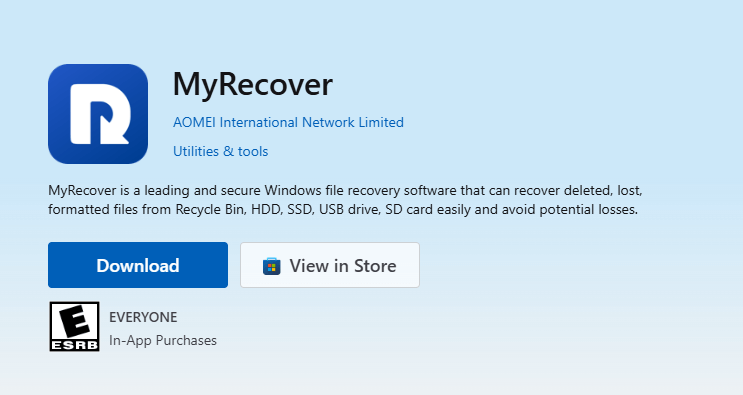
Step 1. Download MyRecover to your PC.
Download and install MyRecover on your Windows-supported computer. If you have another drive available, install the program on the other drive, not on the drive where your lost files were saved. If the files are on an external hard drive, plug the drive into your computer.
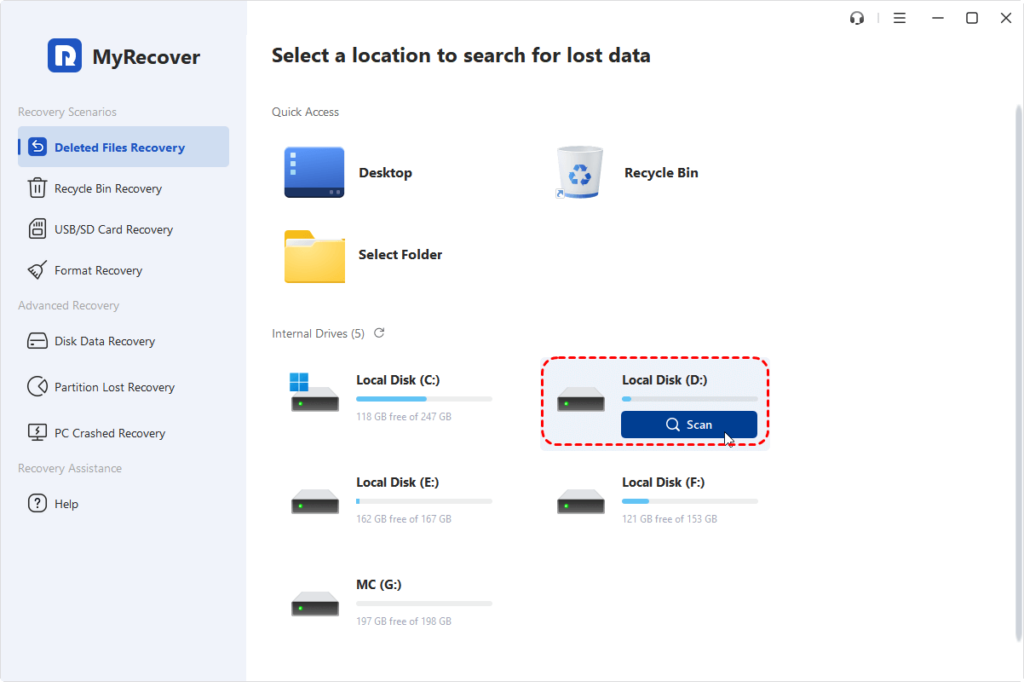
Step 2. Select drive and scan lost files.
Launch MyRecover, select the drive, partition, or specific folder where the files are lost. Click the “Scan” button and let it do its job. It will scan the storage and find any deleted or recoverable files that still reside on the device.
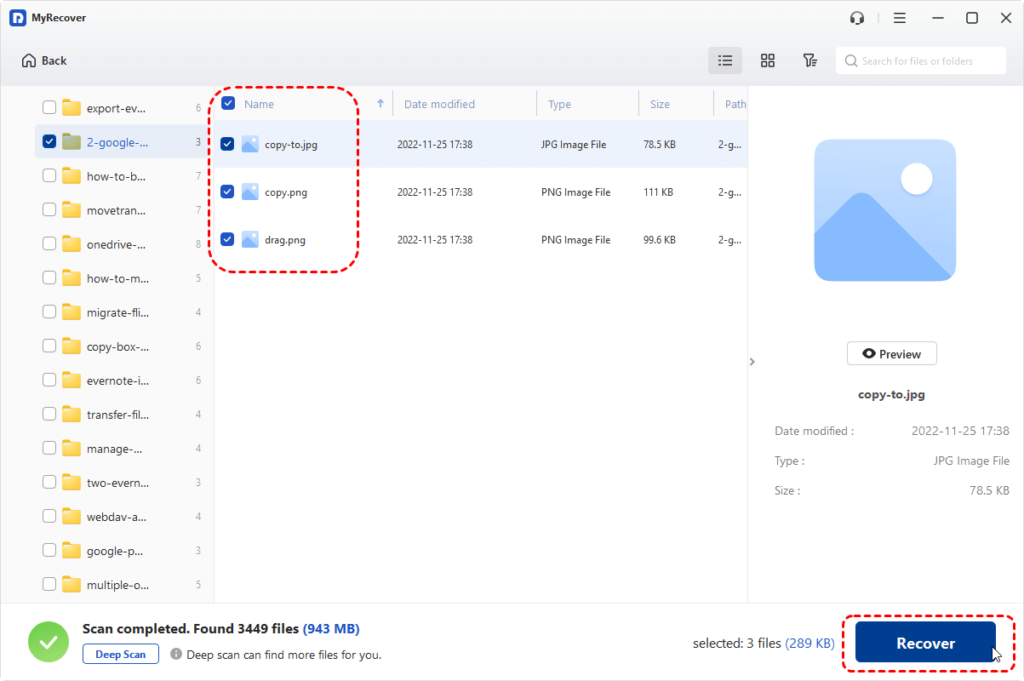
Step 3. View scan results and restore the files you need.
Browse the list of recoverable files and select the ones you really want back and click “Recover.” Upgrading to Professional Edition, you can also preview the scanning results, making the recovery process safer and more controlled. This feature helps to make sure you’re choosing the right documents, photos, or videos.
4. Save recovered files to another location.
Choose another drive or folder as the destination—never save them back to the source. You’re writing new data to that same area, and you could end up overwriting the very files you’re trying to recover, so choose another location.
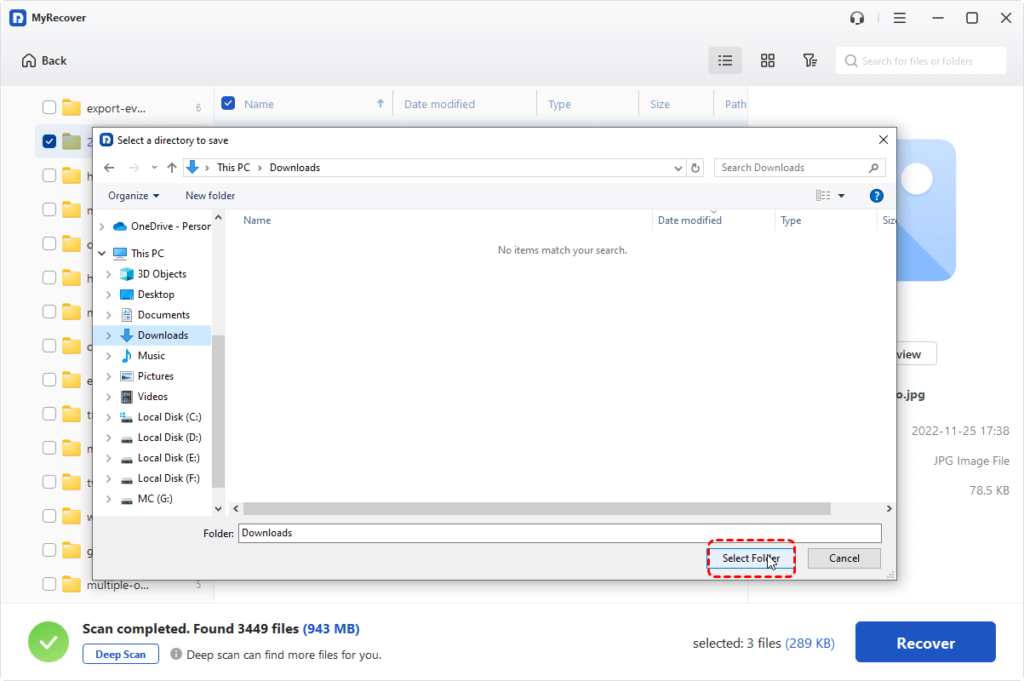
Once the process is finished, you can check the recovered files by clicking on the folder path or the “Browse” button.
Conclusion
With a reliable file recovery solution at your fingertips, you can respond quickly when things go wrong. If you accidentally deleted files, lost data from a storage device, or need to recover inaccessible documents, MyRecover offers you a practical way to search for and restore your files.
Do not wait for new files to overwrite deleted information. Try MyRecover now, scan your device, preview recoverable files, and take your first step to recover your important data.
