
ESXi virtual machine backups are crucial for safeguarding important workloads against ransomware, hardware malfunctions, and other unforeseen events. When something goes wrong, a dependable ESXi backup solution can help you minimize downtime and swiftly restore virtual machines. In this guide, we’ll a potent VMware backup software to help you backup ESXi effectively.
Dependable VMware Backup Software for Businesses of All Sizes
Having a reliable backup solution is crucial for companies that depend on VMware ESXi to run critical apps and services. A useful VMware backup solution called AOMEI Cyber Backup was created to make centralized virtual machine protection easier. It offers a variety of practical features:
Centralized VMware Backup Management
It can take a lot of time to manage backups separately on several virtual machines. Administrators can create and oversee backup tasks from a single location thanks to AOMEI Cyber Backup’s centralized management. Without switching between systems, you can choose the VMware ESXi host and virtual machines that require protection, set up the backup parameters, and keep an eye on backup tasks.
Flexible Backup Scheduling
Because a backup is only valuable if it contains data that is reasonably current, regular backups are crucial. You can plan backup tasks based on your company’s needs with AOMEI Cyber Backup. To lessen the impact on regular operations, you could, for instance, schedule backups to run during off-peak hours.
Scheduled backups also reduce reliance on manual processes. Once the backup plan is configured, the software can automatically perform backups according to the selected schedule.
Full/Incremental/Differential Backup Options
Depending on their recovery goals, available storage, and virtual machine size, different businesses may have different backup needs. When developing a VMware ESXi backup plan, administrators have more options thanks to AOMEI Cyber Backup’s support for full, incremental, and differential backups.
- Full backup: Creates a complete copy of the selected virtual machine, providing a comprehensive recovery point.
- Incremental backup: Saves changes made since the last backup, so backup time and storage usage can be decreased.
- Differential backup: Saves changes made since the last full backup, offering a balance between backup efficiency and recovery convenience.
Protect Critical VMware Workloads
The importance of each virtual machine varies. Critical virtual machines (VMs) that run databases, apps, file services, or other crucial workloads can be prioritized by businesses, and suitable backup tasks can be created for them.
Suitable for Small and Growing Businesses
For smaller companies, a VMware backup solution shouldn’t be unduly complex, but it should also be able to accommodate an expanding infrastructure. AOMEI Cyber Backup provides centralized management that can be useful for organizations with a small number of virtual machines as well as businesses managing larger VMware environments.
As the number of VMs grows, a centralized backup solution can help maintain uniform backup settings and monitor protection throughout the environment.
How to Backup ESXi Virtual Machines Step by Step
In this part, I’ll show you how to backup ESXi VMs with the best business backup solution, AOMEI Cyber Backup.
Step 1. Log in to AOMEI Cyber Backup
1. Launch AOMEI Cyber Backup to bring up the administration interface in your web browser.
2. Log in with your program account or Windows account credentials.
Step 2. Add your VMware environment
1. From the central console, navigate to Source Device > VMware ESXi > Add VMware ESXi.
2. Provide the required connection details for your VMware ESXi host or vCenter Server.
Step 3. Set up a new backup task
- In the left-hand menu, go to Task > Backup > Create New Task.
- Choose VMware ESXi Backup as the backup type.
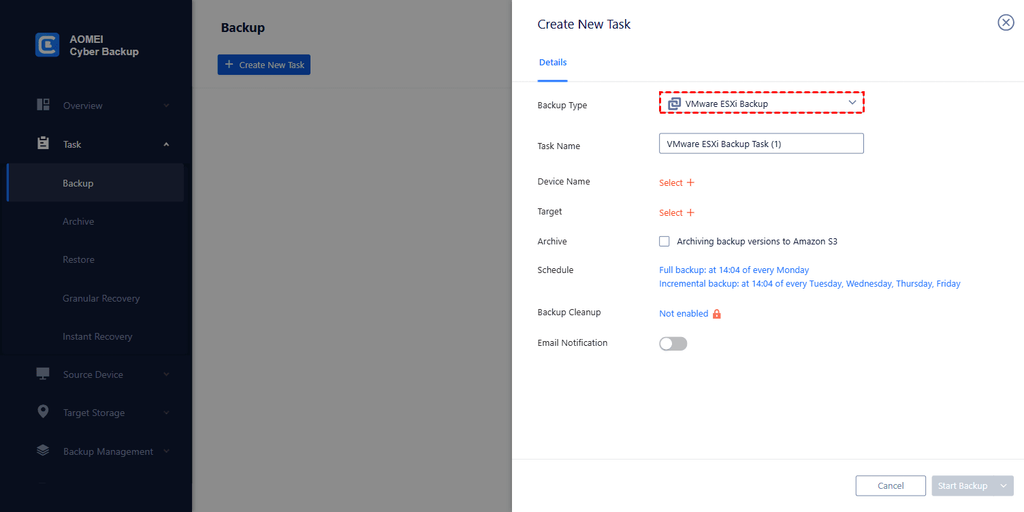
- Enter a custom Task Name or keep the default one.
- Under Device Name, click Select + to choose a host and one or more VMs to back up.
- Under Target, click Select + to designate a local or network storage destination.
- Configure the Schedule and Backup Cleanup settings according to your preferences.
- Click Start Backup to create the task and launch the backup process.
Verdict
Backup VMware ESXi virtual machines to safeguard key business workloads against hardware failures, unintentional loss, ransomware, and other unanticipated difficulties. Using reputable VMware backup software helps ease the process by automating backups, streamlining administration, and offering reliable recovery points.
AOMEI Cyber Backup is a practical choice for businesses of different sizes. It supports centralized VMware ESXi backup management, flexible scheduling, and full, incremental, and differential backup options. Use it to protect your virtual environment and reduce potential downtime right now!
