
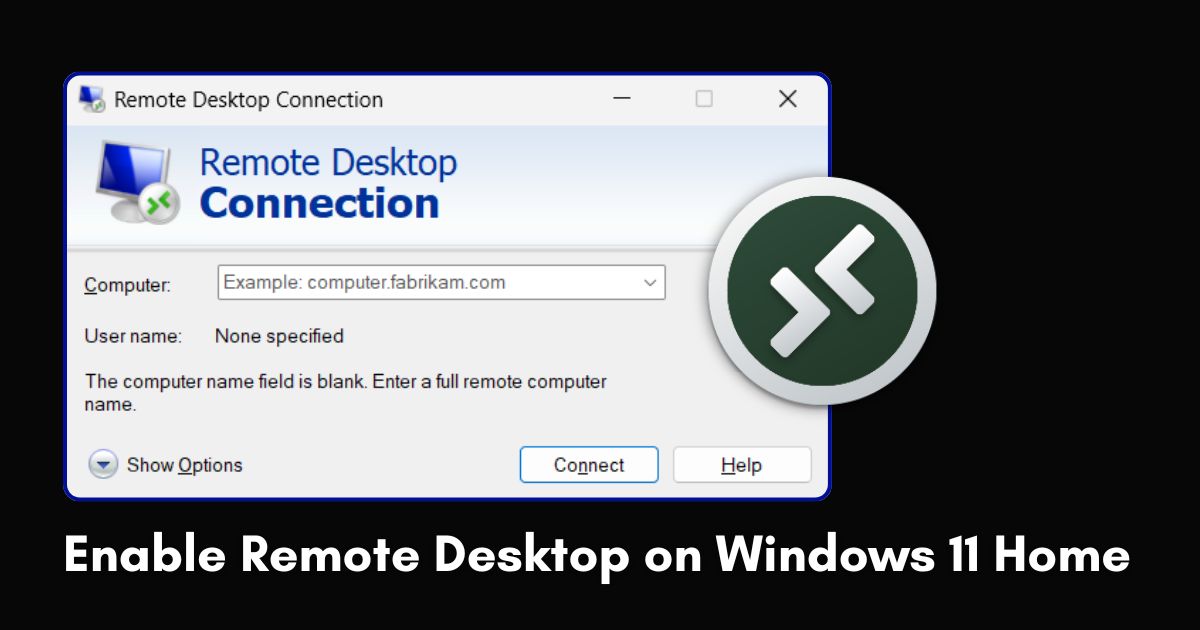
Many users often ask: Does Windows 11 Home have Remote Desktop? The short answer is yes and no.
Have you tried to connect to your PC remotely, only to find that Microsoft has disabled the host feature for Remote Desktop in Windows 11 Home? You are not alone. Microsoft restricts the host capabilities of its native Remote Desktop Protocol (RDP) to Windows 11 Pro and Enterprise editions. If you run Windows 11 Home, you can use the RDP client to control other PCs, but you cannot remotely access your machine without a workaround.
Fortunately, you don’t need to spend over $99 upgrading your operating system or investing in paid tools. By using powerful remote desktop software for Windows, you can bypass this limitation effortlessly. Here are 3 proven ways to get full remote access to your Windows 11 Home computer quickly and securely.
Why Is Remote Desktop Disabled on Windows 11 Home?
Microsoft reserves the built-in Remote Desktop host server feature as a premium business capability. While Windows 11 Home includes the Remote Desktop Connection client app to remotely view other devices, the system lacks the underlying background service (TermService) required to accept incoming remote connections.
If you open Settings > System > Remote Desktop on a Windows 11 Home machine, you will see a message stating that Remote Desktop is not supported on your edition, along with a prompt to upgrade to Windows 11 Pro.
Quick Comparison: Which Method Should You Choose?
| Feature / Metric | Method 1: AnyViewer (Recommended) | Method 2: RDP Wrapper Library | Method 3: Windows 11 Pro Upgrade |
| Cost | 100% Free for Personal & Business | Free (Open-Source) | $99+ Upgrade Fee |
| Ease of Setup | Extremely Easy (1-Click) | Complex (Command Line/Config) | Easy (OS Purchase) |
| Windows Update Safe | Yes (Always Compatible) | No (Breakable by Updates) | Yes. |
| Port Forwarding Required | No | Yes (if over the Internet) | Yes (if over the Internet) |
| Security | End-to-End ECC Encryption | Standard RDP (Requires Router Port Opening) | Standard RDP |
How to Enable Remote Desktop on Windows 11 Home
Depending on your technical comfort level, you can choose between a powerful third-party solution, a free open-source wrapper, or a full OS upgrade.
Method 1: Use AnyViewer for Direct Remote Access (Recommended)
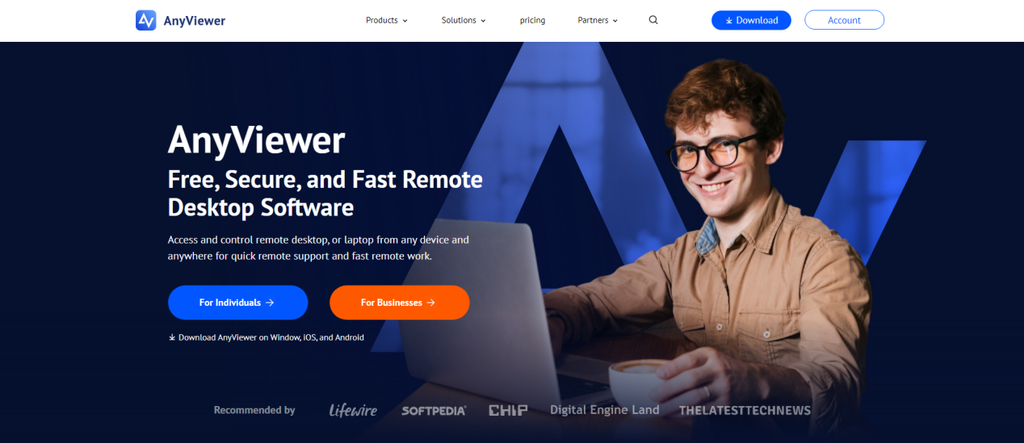
The easiest and most reliable remote desktop Windows 11 Home alternative is AnyViewer. As robust free remote desktop software, AnyViewer bypasses Microsoft’s native RDP restrictions entirely without requiring complex system modifications or network configurations like port forwarding. If you are searching for a seamless remote desktop Windows 11 Home solution, AnyViewer provides the complete feature set without any cost.
Key Features of AnyViewer
- Full Windows 11 Home Support: Works smoothly across all Windows editions, including Home, Pro, and Server.
- One-Click Unattended Access: Connect to your home PC without anyone needing to accept the connection on the remote end.
- High Performance: Delivers fast frame rates, low latency, and high-definition image quality for smooth operation.
- End-to-End Security: Secured using strong ECC (Elliptic Curve Cryptography) encryption to keep remote sessions private.
- Built-In Productivity Tools: Supports multi-monitor switching, remote file transfer, text chat, and screen resolution adjustments.
How to Set Up AnyViewer on Windows 11 Home:
Step 1. Download and install AnyViewer on both your Windows 11 Home PC and the device you want to control it from.
Step 2. Launch AnyViewer on your Windows 11 Home PC and sign up for a free account.
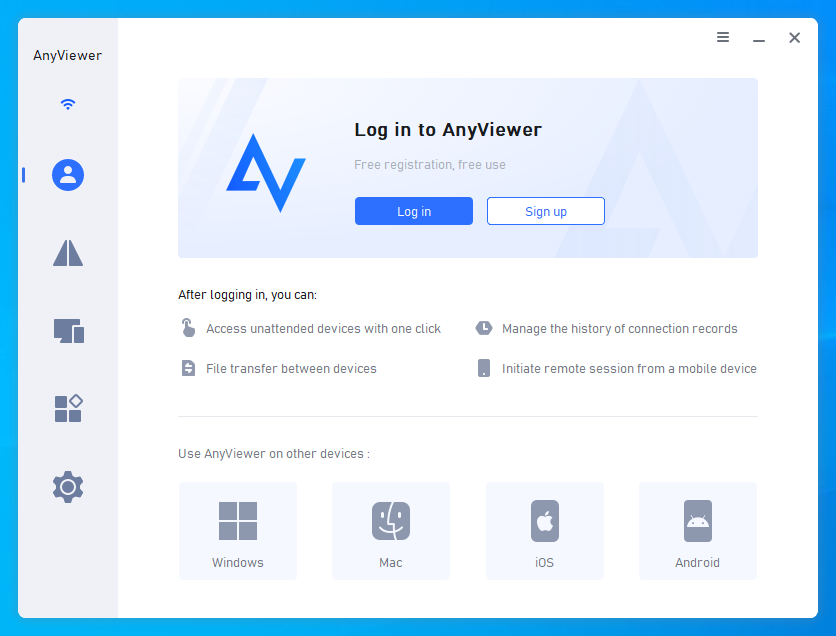
Step 3. Log into the same AnyViewer account on your client device.
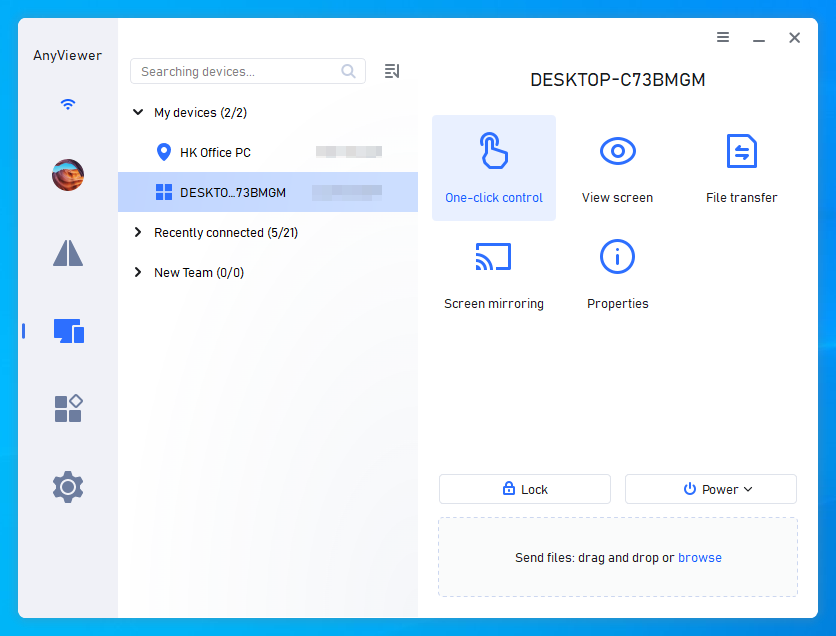
Step 4. Go to the Device tab, select your Windows 11 Home computer, and click One-click control to establish an instant connection.
Method 2: Use the Open-Source RDP Wrapper Library
If you want to use Microsoft’s native RDP client without upgrading your operating system, you can install an open-source tool called RDP Wrapper Library. This utility acts as a layer between your Service Control Manager and Terminal Services, enabling the host capabilities hidden inside Windows 11 Home.
Caution: Because Microsoft frequently updates Windows 11, system updates can break RDP Wrapper compatibility. Always back up your system before proceeding.
Step 1. Download the latest release of the RDP Wrapper Library from GitHub.
Step 2. Extract the downloaded ZIP folder to a local directory.
Step 3. Right-click install.bat and select Run as administrator.
Step 4. Once installation completes, run RDPConf.exe as an administrator.
Step 5. Review the State section. If all items (Listener state, Service state) show green and [Fully supported], your native Remote Desktop host is active.
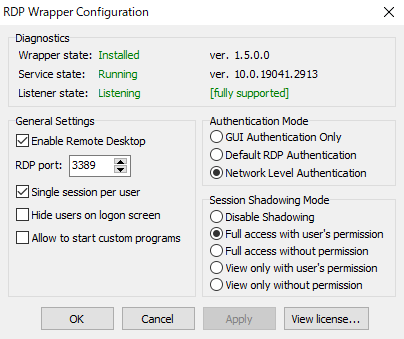
Step 6. Open Command Prompt, type ipconfig, and note your local IP address to connect via the standard Remote Desktop client.
Method 3: Upgrade to Windows 11 Pro
If you prefer an official Microsoft solution without using external tools or open-source patches, upgrading your operating system to Windows 11 Pro enables native Remote Desktop instantly.
Step 1. Open Settings on your PC.
Step 2. Navigate to System > Activation.
Step 3. Expand the “Upgrade your edition of Windows” section.
Step 4. Click Open Store to purchase a Windows 11 Pro upgrade license, or enter a valid Pro product key under Change product key.
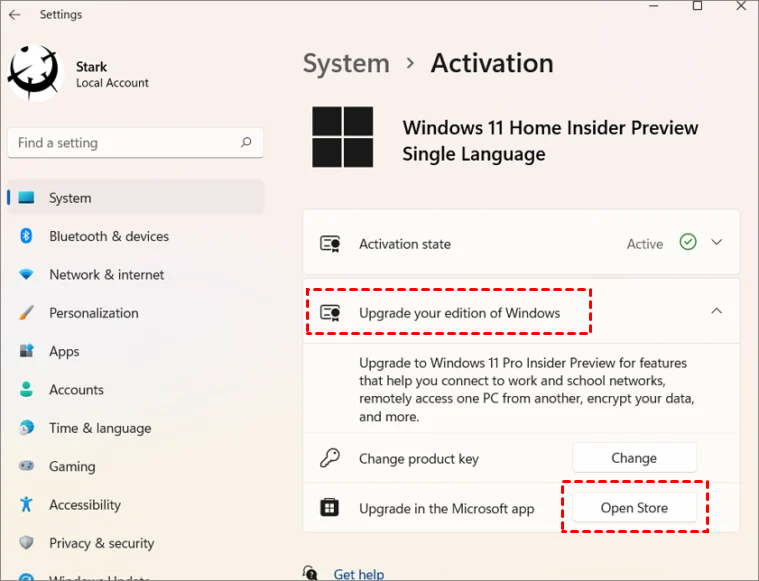
Step 5. Once the upgrade completes and the system restarts, go to Settings > System > Remote Desktop and toggle the switch to On.
Conclusion
While Windows 11 Home lacks native Remote Desktop host support, accessing your PC remotely doesn’t have to be complicated or expensive. You can attempt open-source patches like RDP Wrapper or pay for a Windows Pro upgrade, but using a dedicated remote desktop Windows 11 Home alternative like AnyViewer is by far the easiest, safest, and most reliable method.
Ready to control your Windows 11 Home computer from anywhere? Download AnyViewer for free today and set up remote access in minutes!
Frequently Asked Questions
No, not natively. Windows 11 Home includes the Remote Desktop client app to control other PCs, but Microsoft disables the incoming host service. You must use software like AnyViewer or an RDP patch to accept incoming connections.
Using native RDP over the open internet by opening Port 3389 poses security risks, such as brute-force attacks. Solutions like AnyViewer secure connections using end-to-end ECC encryption, eliminating the need to expose ports on your router.
AnyViewer offers a feature-rich free version that includes unattended access, file transfer, and multi-monitor management for both personal and business users.
Windows updates often modify the termsrv.dll file that RDP Wrapper requires. Whesuch an eventis occurs, you must update the rdpwrap.ini configuration file with the new DLL offsets or switch to dedicated software like AnyViewer.
Download the AnyViewer mobile app from the iOS App Store or Google Play Store, log into your account, and select your Windows 11 Home PC to start controlling your desktop from your phone.
