
Google Photos vs. iCloud Photos: Core Differences
Google Photos and iCloud Photos both are services are top-tier cloud photo solutions, but they operate on completely different design philosophies:
Google Photos
Google Photos acts as an independent cloud repository. It functions like a digital vault: deleting a photo locally off your device does not automatically erase it from the cloud. It comes with highly flexible across platforms, offering a seamless, feature-complete experience on iOS, Android, Mac, Windows, and web browsers.
iCloud Photos
iCloud Photos is not a traditional standalone backup—it is a live mirror across all your devices. Its primary goal is absolute consistency across iPhone, iPad, and Mac. Deleting or editing a photo on your iPhone reflects instantly across your Mac and iCloud storage.
It is deeply embedded into iOS and macOS as a native system component, and integrates effortlessly with Apple Family Sharing, Apple TV, and the native macOS Photos app.
If you have spent years relying on Google Photos and now want everything organized inside iCloud Photos, no matter for unified Apple Family Sharing, native iOS integration, or seamless access on Mac. Doing it manually can feel nearly impossible.
Why Manual Transfer Methods Break Down
Most people try the obvious DIY routes to transfer photos from Google Photos to iCloud first, only to find it hassling and time-consuming:
- The Google Takeout Trap: Requesting your archive through Google Takeout generates massive, split .zip files stuffed with detached .json metadata files. Reuniting your photos with their original creation dates and location tags is a manual nightmare.
- Storage Bottlenecks: Downloading a 100 GB+ library to your local drive requires massive spare SSD capacity. If your laptop is low on space, the process grinds to a halt before you even start.
- Network Instability & Upload Failures: Desktop browser sessions frequently timeout. A temporary Wi-Fi drop mid-upload can corrupt files or force you to figure out which photos transferred and which were skipped.
To move thousands of high-resolution images and 4K videos safely, you need a professional cloud to cloud transfer tool that skips your computer entirely and moves files directly between servers.
Top Google Photos to iCloud Transfer Tool: MultCloud
To bypass all above limitations or traps of manual cloud to cloud transfer methods, we highly recommend using MultCloud, which is a famous and reliable cloud to cloud sync, transfer, and backup tool. Different from the traditional solutions, it comes with the following advantages:
- Offline Transfer: Tasks execute entirely on MultCloud’s dedicated servers, allowing you to close your browser or turn off your computer once the transfer begins.
- Direct Cloud-to-Cloud Migration: Files move straight between platforms without touching your local storage, eliminating disk space concerns.
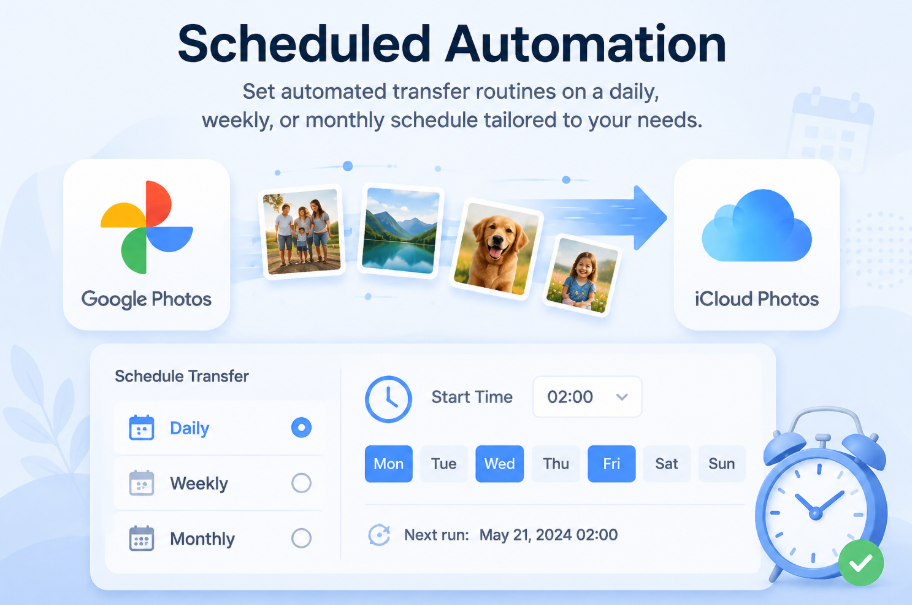
- Scheduled Automation: Set automated transfer routines on a daily, weekly, or monthly schedule tailored to your needs.
- Flexible File Filtering: Easily include or exclude specific files by setting custom file-extension filters.
As a well-known cloud transfer tool, with over 13 years of experience, MultCloud now support nearly 40+ cloud drives, including Google Photos, Google Drive, iCloud Drive, iCloud Photos, OneDrive, OneDrive for Business, Google Workspace, Dropbox, Dropbox for Business, Mega, SharePoint, FTP, etc, so that you can manage all your cloud drives in this single platform.
Detailed Step-by-Step Guide: Transferring Google Photos to iCloud
Now, you can access multcloud.com and follow the steps to sync and transfer files between Google Photos to iCloud effortlessly.
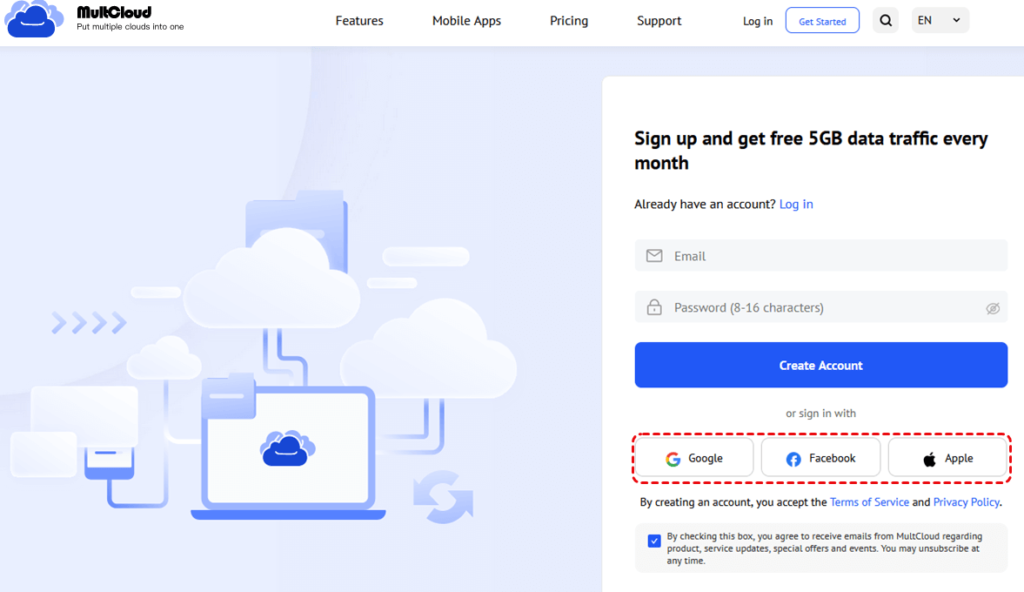
Step 1. Log in MultCloud
Go to the MultCloud website and create an account. You can sign up using an email address or log in directly via third-party providers like Google or Apple.
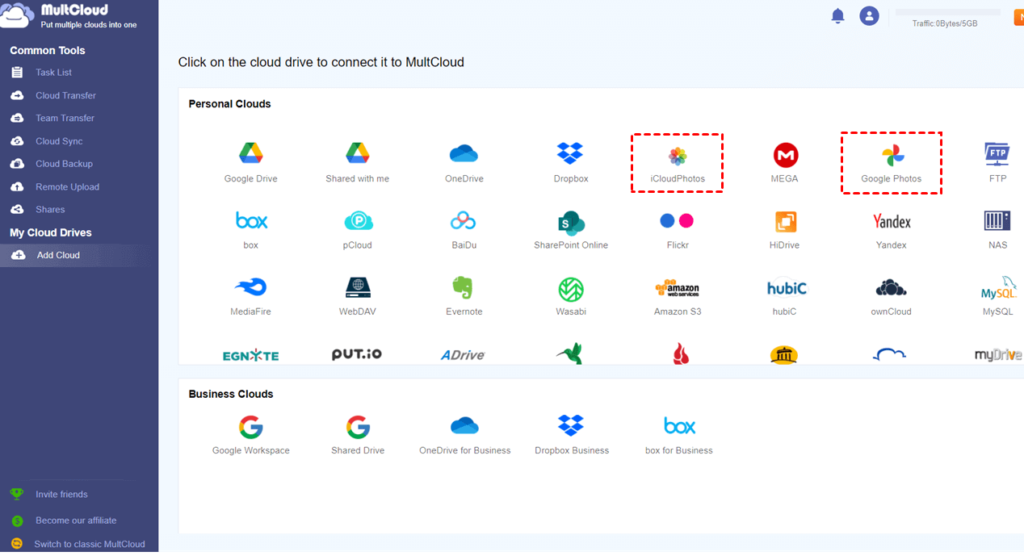
Step 2. Add Your Cloud Drives
Select “Add Clouds and Emails” from the left navigation panel.Choose “Google Photos” from the list of supported storage services.Follow the OAuth prompt to grant read/write access to your photo archive. MultCloud never stores your account password directly. Select iCloud Photos. Enter your Apple ID credentials and complete two-factor authentication (2FA).Grant permission to access your photo library.
Step 3. Navigate to the “Cloud Transfer” tab on the left sidebar.Click the left box to select your source: choose Google Photos (you can select the entire library or specific photo folders/albums).Click the right box to select your destination: select iCloud Photos.
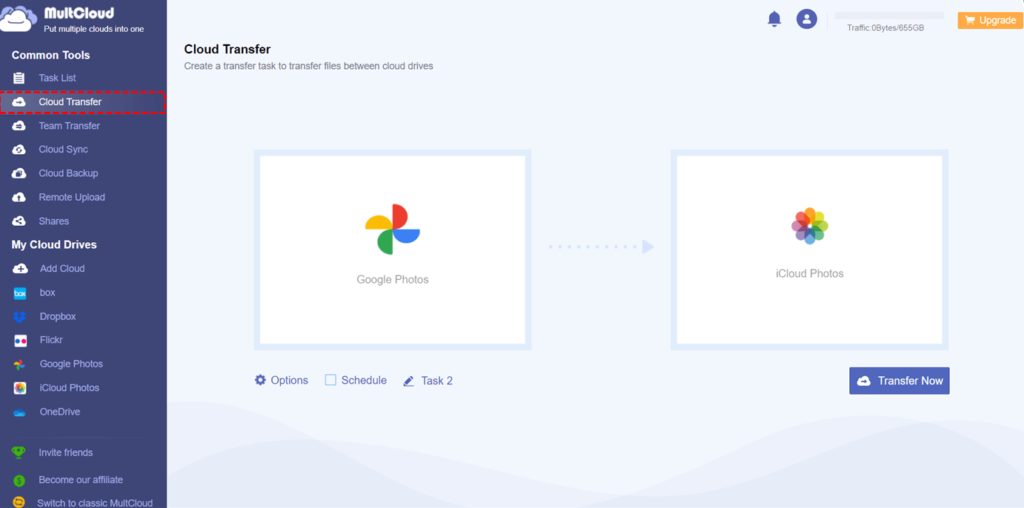
Step 4. Configure the Cloud Transfer Task (Optional)
Click “Options” at the bottom to configure duplicate handling, file filtering (specific extension types), or set email notifications upon task completion.
Click “Schedule” to set up automated, recurring transfers at your preferred frequency—whether daily, weekly, or monthly.
Step 5.Execute and Monitor the Migration
Click “Transfer Now”. You can monitor progress under the Task List tab. Once the task is in progress, you can close the browser window or shut down your PC—the migration will run on remote servers until complete.
Summary
So, with MultCloud, you can easily transfer Google Photos to iCloud online without manually downloading and re-uploading any more. Moreover, MultCloud supports far more than just these two services—it connects with over 40 major cloud providers, including Google Drive, OneDrive, Dropbox, Box, and Amazon S3. This gives you a single, centralized dashboard to manage all your cloud accounts.
Now, it has also launched native mobile apps, allowing you to manage your transfers on the go. Whether you prefer using a mobile browser or downloading the app directly to your phone, you can set up, schedule, and monitor cloud transfers, syncs, and backups anytime, anywhere.
